
ManualLocal processing

Blur Part of an Image

Drag a box over anything you want softened, such as a face, a name tag, a screen or a background detail, and export a blurred copy. Your files never leave your device.

Blur keeps the shape of the scene while hiding the detail, so the photo still looks natural. For text you need to make completely unreadable, switch to Black box.

Suite hub
Real examplePlate covered
1 area redacted
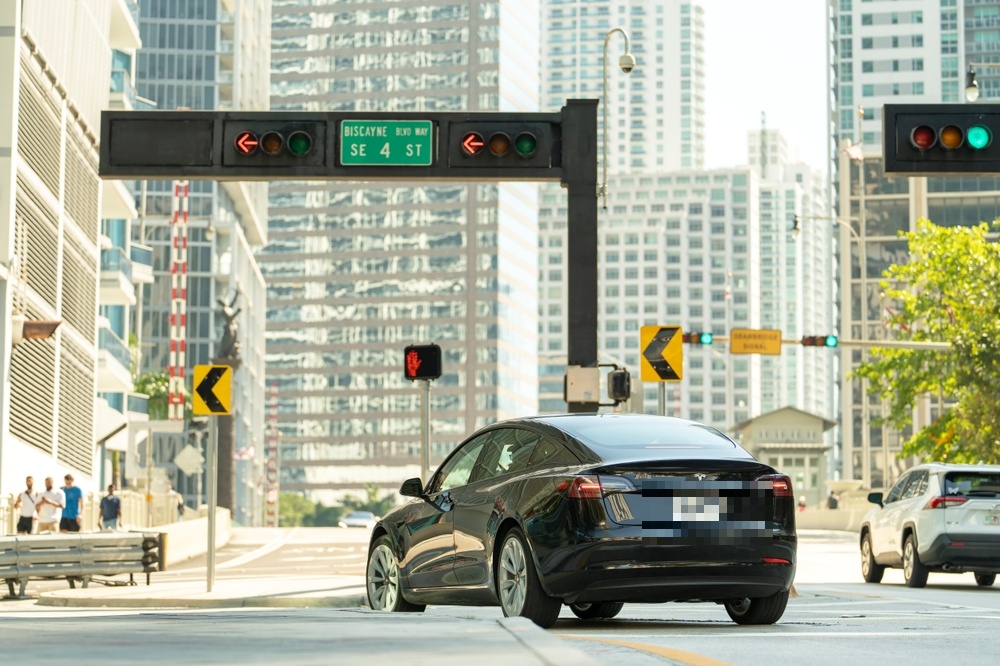
Car with its license plate covered using Image Redactor
ModesBlack boxBlurPixelate

Drop one image to redact

Draw boxes over sensitive areas, then export a flattened copy.

When blur is the right choice

Blur suits faces in a crowd, people in the background of a listing photo, or a cluttered desk behind a product shot. The picture keeps its composition while the sensitive part becomes unrecognisable.

Blur is not a substitute for redaction when the hidden content is short, high-contrast text such as a password, a card number or a one-time code. A heavy blur over large text can sometimes be partially reversed, so use Black box for those.

Why blurring locally matters

The photos people blur are usually the ones they would least like to hand to a stranger: children, home interiors, ID documents, screenshots of private messages. NoUpload applies the blur in your browser, and the original is never transmitted.

Export flattens the blur into the pixels of a new file and strips metadata, so the exported copy carries neither the hidden detail nor GPS or camera information.

Three steps, no upload.

Load

Add your image

JPEG, PNG, or WebP.

Mark

Draw over sensitive areas

Cover faces, names, addresses, plates, account numbers, or tokens with black box, blur, or pixelate.

Export

Download a flattened copy

Redactions are baked into the pixels of a new file, and metadata is stripped on export.

Most file tools send your files to someone else's server first. NoUpload doesn't.

For client work, ID scans, medical documents, unreleased product shots, or anything else you do not want sitting in a stranger's storage, the safer upload is the one that never happens.

File processing runs in your browser. Google Analytics records page views and anonymous tool-usage events, but NoUpload does not send filenames, metadata values, file sizes, image blobs, or other file details as analytics data.

  • Your files never leave your device
  • No account, sign-in, or email required
  • Analytics events record only which tool and page were used
  • No server-side file processing path

Don’t take our word for it. Check.

Anyone can claim files stay on your device. Here is how to confirm it yourself in under a minute, with tools already in your browser.

  1. Open the Network panel. Press F12 (Windows/Linux) or ⌥⌘I (Mac) and choose the Network tab.
  2. Process a file. Add an image and run any tool, then download the result.
  3. Read the requests. You will see page assets and small anonymous analytics pings. No request carries your image.

Or go further: load the page, switch off Wi-Fi, and use the tool. Processing still works, because it never needed a server.

Common questions

Yes. Draw as many boxes as you need before exporting. Each area can use a different mode, for example blur for faces and black box for text.