
ManualLocal processing

Pixelate Part of an Image

Select an area and NoUpload replaces it with large mosaic blocks, the classic censor effect for faces, screens and plates. Your files never leave your device.

Pixelation reads clearly as deliberate censorship, which is often what you want when sharing evidence, screenshots or street photos.

Suite hub
Real examplePlate covered
1 area redacted
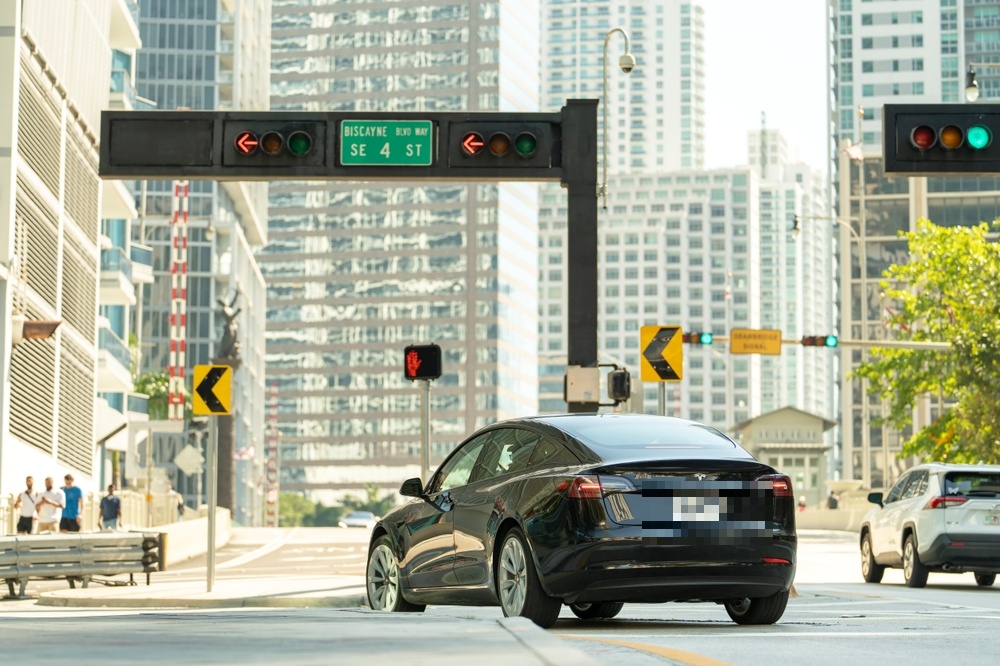
Car with its license plate covered using Image Redactor
ModesBlack boxBlurPixelate

Drop one image to redact

Draw boxes over sensitive areas, then export a flattened copy.

Pixelate, blur or black box?

Pixelate makes it obvious that something was hidden on purpose. Blur is softer and looks more natural in photos. Black box is the strongest option for text, because no trace of the underlying shapes remains.

For small text such as an email address or account number, prefer Black box. Coarse pixelation of a few characters can sometimes be guessed by comparing candidate strings.

What gets exported

The pixelated areas are baked into a brand-new image file. Your original stays untouched on your device, and the export has its EXIF, GPS and camera metadata removed.

Three steps, no upload.

Load

Add your image

JPEG, PNG, or WebP.

Mark

Draw over sensitive areas

Cover faces, names, addresses, plates, account numbers, or tokens with black box, blur, or pixelate.

Export

Download a flattened copy

Redactions are baked into the pixels of a new file, and metadata is stripped on export.

Most file tools send your files to someone else's server first. NoUpload doesn't.

For client work, ID scans, medical documents, unreleased product shots, or anything else you do not want sitting in a stranger's storage, the safer upload is the one that never happens.

File processing runs in your browser. Google Analytics records page views and anonymous tool-usage events, but NoUpload does not send filenames, metadata values, file sizes, image blobs, or other file details as analytics data.

  • Your files never leave your device
  • No account, sign-in, or email required
  • Analytics events record only which tool and page were used
  • No server-side file processing path

Don’t take our word for it. Check.

Anyone can claim files stay on your device. Here is how to confirm it yourself in under a minute, with tools already in your browser.

  1. Open the Network panel. Press F12 (Windows/Linux) or ⌥⌘I (Mac) and choose the Network tab.
  2. Process a file. Add an image and run any tool, then download the result.
  3. Read the requests. You will see page assets and small anonymous analytics pings. No request carries your image.

Or go further: load the page, switch off Wi-Fi, and use the tool. Processing still works, because it never needed a server.

Common questions

The exported file does not contain the original pixels, but coarse pixelation of short, predictable text can sometimes be guessed. Use Black box for passwords, codes and account numbers.